Document source
url + key
Provide the document to parse
Submit a reachable document URL with your API key. Use only file types and input options documented by the LLM Parse endpoint.
Parse supported documents into Markdown, JSON, or text, then prepare that content for retrieval, embeddings, analysis, or agentic applications. PixLab also exposes OpenAI-compatible tool definitions and structured tool calls for developers building beyond document ingestion.
Looking for the broader endpoint directory? Compare all VLM endpoints.
Input
Document URL
Process
Asynchronous parse job
Output
Markdown · JSON · text
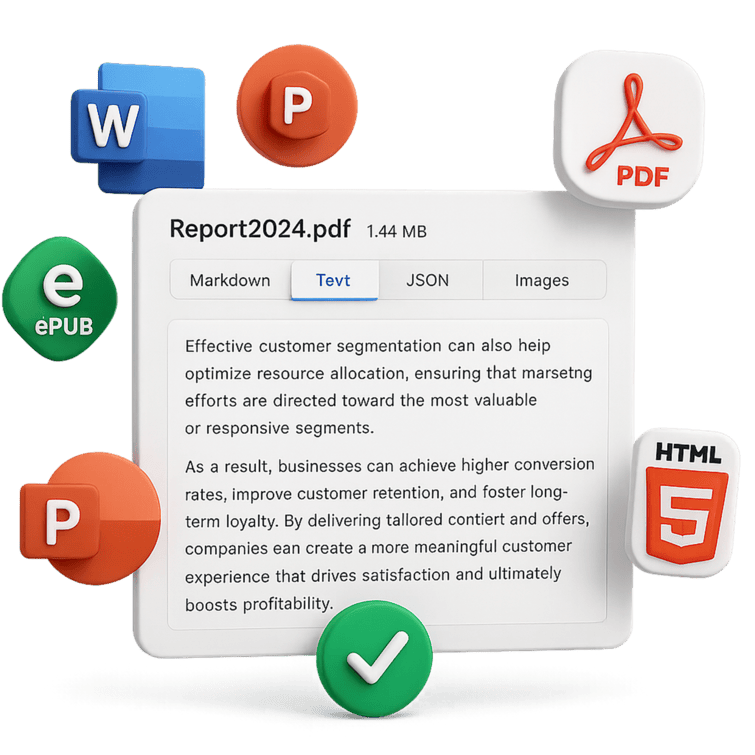
The Parse API converts documents into Markdown, JSON, or text. Your application can then validate the result, prepare retrieval context, pass relevant content to a model, or connect it to a controlled tool workflow.
Parsing is asynchronous. Submit a document, store the returned jobId, and poll the job endpoint until processing is completed or failed. Downstream retrieval, model, and tool behavior remains under your application’s control.
Document source
url + key
Submit a reachable document URL with your API key. Use only file types and input options documented by the LLM Parse endpoint.
Asynchronous parsing
POST /llmparse
A JSON request queues the parsing job and returns a jobId. Select the documented md, json, or text output format.
Job status
GET /job/{jobId}
Check the job endpoint using the returned identifier and API key. Continue only after the response reaches a documented terminal state.
Structured result
Read result.format and result.data, then validate the result before passing it into another system.
Context preparation
Text Embeddings APIYour application can segment the parsed result, generate embeddings, index useful passages, and retrieve relevant context for search, RAG, classification, or document question-answering.
Controlled application workflow
Tool Call APISupply relevant content to a model, return a grounded response, or expose supported tool definitions to an agentic application. Your application remains responsible for authorization, validation, approval, and how any resulting action is performed.
Send a document URL to https://api.pixlab.io/llmparse. Choose an output format. The API queues an asynchronous parsing job, runs layout-aware document conversion, and returns your document as clean Markdown, structured JSON, or plain text.
md, json, or text. Default is Markdown.
jobId for results.
Key parameters
url
Required. Publicly reachable URL to the input document. Also accepted as downloadUrl.
format
Optional. md, json, or text. Defaults to md.
extension
Optional parser hint, e.g. pdf, docx, xlsx, pptx, html. Defaults to pdf.
key
Required. Your PixLab API key. Can also be sent in the WWW-Authenticate header.
{
  "rc": true,
  "status": "accepted",
  "jobId": "doc_01hx9z3p9r6n6k2a",
  "message": "Job queued. Poll /job/{jobId} for results."
}
Polling request
GET https://api.pixlab.io/job/{jobId}?key=PIXLAB_API_KEY
{
  "status": "completed",
  "result": {
    "format": "md",
    "data": "# Parsed document\n\nClean LLM-ready Markdown output..."
  }
}The goal is not just to extract characters. It is to reduce file-format noise while retaining useful structure for retrieval, analysis, and model context.
Extracts text while preserving useful structure such as headings, reading order, tables, lists, and sections where the source document allows.
The Parse API documentation covers document conversion. PixLab provides separate OCR endpoints for raw image text extraction; validate image-heavy or scanned-document results before indexing them.
The documented conversion is layout-aware and preserves headings, reading order, tables, lists, and sections where possible instead of treating every source as flat text.
Choose Markdown for LLM context windows and RAG chunks, structured JSON for programmatic access, or plain text for indexing and classification pipelines.
One endpoint accepts PDF, DOCX, PPTX, XLSX, HTML, text, and other supported office/document formats. The optional extension value is a parser hint and defaults to pdf.
Parsed output is designed to reduce binary and formatting noise before content reaches an LLM, vector database, search index, or downstream analysis step.
After parsing, pass document chunks to the Text Embeddings API at https://llm.pixlab.io/embedding. Send a text string, receive a dense vector. Store vectors in your retrieval system of choice.
Semantic search
Find documents by meaning, not only keyword match. Embed queries and retrieve the most relevant chunks.
RAG context assembly
Retrieve the most relevant parsed chunks and inject them as context into your language model prompt.
Clustering and classification
Group related documents, detect duplicates, or classify content by topic using embedding similarity.
Embedding API at a glance
Endpoint
https://llm.pixlab.io/embedding
Parameters
input
Text to embed. Up to 8,192 tokens per request.
dimension
Output vector size. Supported: 512 or 1024. Default: 1024.
key
Your PixLab API key, or use the documented WWW-Authenticate header.
Response
{
  "status":       200,
  "embedding":    [2.8765, 1.9870, 4.9076],
  "model":        "pixlab-text-embed",
  "total_tokens": 512
}
Supports multilingual text. Use the vector in any downstream retrieval, ranking, or clustering system.
The LLM Tools API returns schemas your model can use to decide which tool to call. The Tool Call API executes the call. Your application controls selection, authorization, and what happens next.
LLM Tools API
An authenticated GET request to https://llm.pixlab.io/llmtools returns available tool schemas in OpenAI-compatible function-calling format. Each definition includes its type, name, description, and JSON parameters schema. Returning a definition does not execute it.
Definition fields
type
name
description
parameters
Documented toolkit examples
Authentication uses a PixLab key parameter or the documented WWW-Authenticate header. Tool availability comes from the API response; do not assume every documented toolkit is always returned.
Open the LLM Tools reference →LLM Tool Call API
A POST to https://llm.pixlab.io/toolcall executes one or more tool calls whose schemas were returned by the LLM Tools API. Pass the tools array your LLM selected. Tool names must exactly match those defined by the LLM Tools API.
Match supported names and schemas
Do not assume an arbitrary function can be submitted for execution.
Keep application policy outside the model
Your application decides what tools are exposed, when a call is authorized, and how results are validated.
The documented response includes status, id, output, object, created, model, total_input_tokens, total_output_tokens, and error for non-200 results. Authentication uses the request key or documented header.
Open the Tool Call reference →
The example follows the official JavaScript flow: submit a JSON POST, verify that the job was accepted, poll with the returned jobId, handle completed and failed, then read result.format and result.data.
Use this sample from a trusted backend or development environment. Get the placeholder value from PixLab Console ↗.
A successful HTTP response is not enough. Confirm job.rc before using job.jobId.
queued and processing continue polling. completed and failed are terminal.
Confirm the requested result.format and validate result.data before storage, retrieval, prompting, or tool selection.
Use these APIs when document parsing, retrieval, or tool calling belongs inside your application. Use the product pages below when you need a broader platform overview, an agent workflow, a browser workspace, or the complete vision API directory.
The product overview connecting PixLab's developer APIs, document intelligence such as DocScan, Vision Workspace, and agentic products.
See the platform overview →The agent-workflow overview, including how Think-Act uses bounded tasks, enabled tools, approvals, and reviewable results.
Understand agent workflows →Browser-based document, OCR, document-chat, and vision workflows without building an API integration first.
Open the Workspace guide →The broader API reference for vision-language analysis, OCR, embeddings, tools, and related PixLab endpoints.
Choose a VLM endpoint →Short answers grounded in the documented behavior of the PixLab LLM Parse, Text Embeddings, LLM Tools, and Tool Call APIs. Can't find the answer you need? Contact support.
A completed parsing job returns the requested output format and parsed document data. Markdown and text outputs are strings, while JSON returns structured document data.
The documented flow is asynchronous. A successful POST accepts the job and returns a jobId. Your application then polls until the status becomes completed or failed.
The documented values are md, json, and text. Markdown is the default.
Use the returned jobId with PixLab's job endpoint. The documented polling states include queued, processing, completed, and failed.
It returns the available PixLab tool definitions in an OpenAI-compatible function-calling format. Those definitions describe callable capabilities and their schemas. Returning a definition does not automatically execute the tool.
Tool definitions describe available functions, including their names and parameter schemas. A tool call is a structured request that matches one of those supported definitions and is submitted to the Tool Call API for execution.
Text embeddings convert text into vectors that capture semantic similarity. Your application can index those vectors, compare a query with stored content, retrieve relevant passages, and supply the selected material to a model as RAG context.
Yes. Developers can combine parsed context, retrieval, embeddings, models, and supported tool calls. Your application still decides which tools are available, what is authorized, whether approval is needed, and how results are used.
Get started
Start with the LLM Parse reference, create an API key, and use the endpoint-specific documentation when you add embeddings, tool definitions, or structured tool calls.