API Endpoint Access URL
https://api.pixlab.io/upscale
Get an API Key and Try UPSCALE Now ↗AI Image Upscaling and Enhancement
The PixLab Image Upscale API (UPSCALE) enhances images and enlarges them to twice their original width and height with one REST request. Upload a JPEG, PNG, or WebP image or provide its public URL. Use scale=1 for enhancement at the original size or scale=2 for 2x enlargement.
AI super-resolution estimates additional detail from learned image patterns. Unlike ordinary interpolation, it can create a clearer-looking enlarged image, but estimated texture is not guaranteed to reproduce the original scene. For camera-shake and motion blur without enlargement, use the Image Deblur API.
For marketing teams, ecommerce businesses, and creative agencies, UPSCALE adds image enhancement to existing content workflows. Developers can prepare larger product photos, campaign assets, and property-gallery images through a backend service or scheduled job. Python, JavaScript, PHP, and Ruby examples are included below.
Compare pixelated edges with finer fabric and stitching in the same product photo, shown at the same display size. This is an illustrative resolution comparison, not an API output sample; actual results depend on the source image.
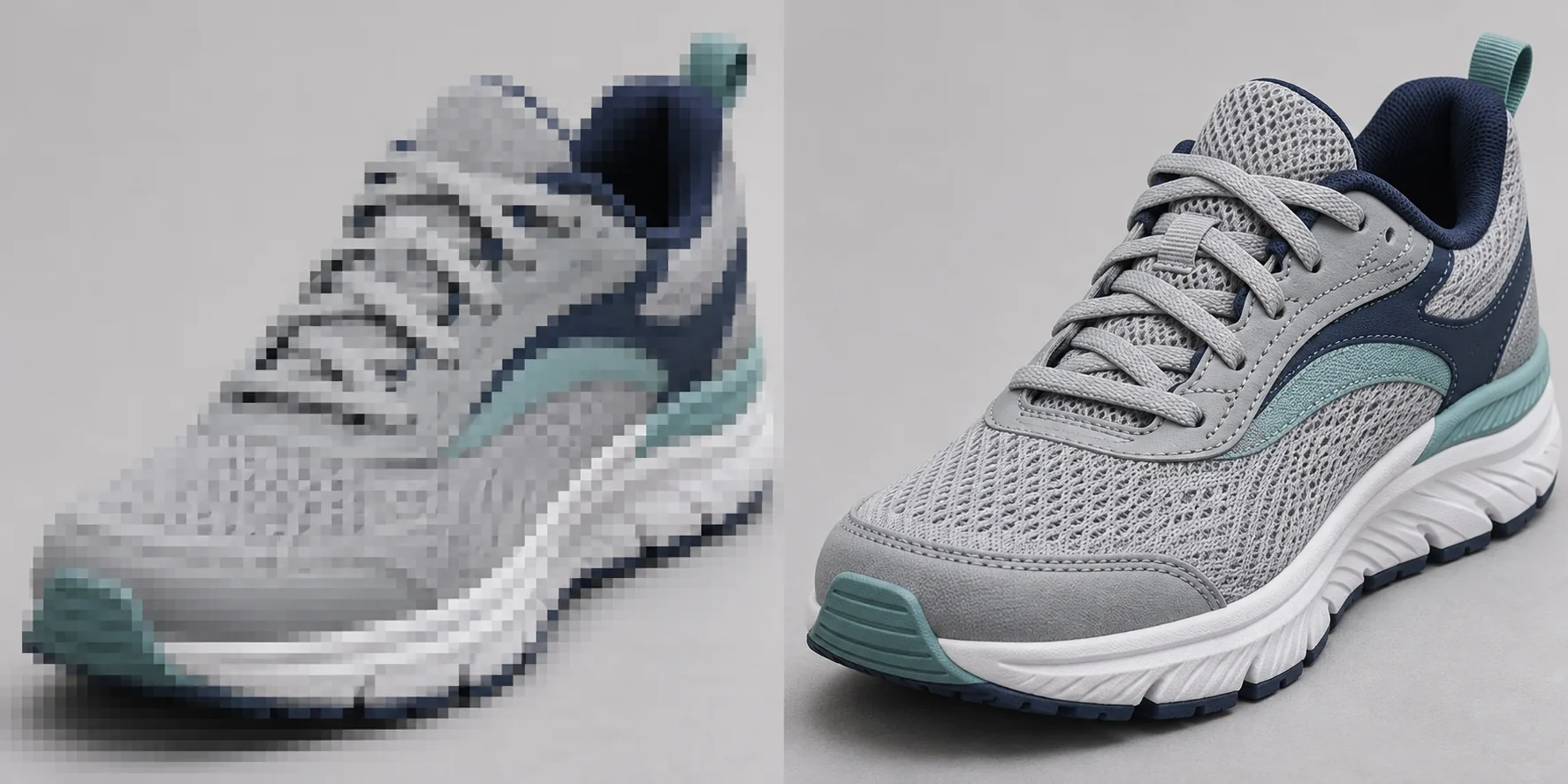
What UPSCALE provides:
- A REST endpoint for backend services, automation workers, and scheduled jobs. No SDK is required.
- 2x enlargement that doubles width and height while preserving the aspect ratio.
- Original-size enhancement with scale=1, or 2x upscaling with scale=2, the default.
- Input through a public image URL or direct file upload, with output as Base64 JSON data, raw image bytes, or a file in your connected AWS S3 bucket.
- JPEG, PNG, and WebP inputs up to 4,000,000 pixels and 10 MiB. Larger inputs are rejected rather than silently resized.
Bulk product-photo upscaling and image enhancement
Connect UPSCALE to your product information management (PIM), content management (CMS), or digital asset management (DAM) system through your own application. Each request processes one image, making it suitable for queued catalog imports and campaign-library updates. Keep concurrency within your account limits. For sustained high-volume processing, contact the PixLab support team with your daily volume and source image dimensions.
Image enhancement for marketing teams and ecommerce
- Marketing teams: prepare larger campaign images for social media, email banners, and landing pages. Enhance approved source photos before adapting them to each channel's dimensions.
- Ecommerce and marketplaces: enlarge small supplier photos for product detail pages, catalog galleries, and high-density displays. Review labels, textures, and product features against the source.
- Creative and digital agencies: add image enhancement to client asset preparation and reuse photo libraries across digital campaigns, with a review step for logos and brand details.
- Real estate and hospitality: create larger property-gallery and accommodation images while preserving the original aspect ratio.
- SaaS and photo-editing tools: offer 2x image enlargement or original-size enhancement inside editing applications and upload workflows.
- Publishers and content libraries: prepare larger archive photographs and editorial images when higher-resolution originals are unavailable, retaining the source for comparison.
Output quality depends on the source image. AI enhancement estimates detail and cannot reliably recover missing information or unreadable text. Keep the original and review faces, labels, and product features before publishing the result.
Image processing and storage: Keep your source images for comparison. With a connected AWS S3 bucket, output can be written to your own storage. Review the PixLab Privacy Policy for processing and retention details.
To get started, create an API key in the PixLab Console ↗, submit a public image URL or upload a file, and consume the returned image data. See the Python, JavaScript, PHP, and Ruby samples below ↓.
For other product-photo and marketing workflows, use the Background Removal API to isolate subjects, the Image Deblur API to reduce camera shake, or the Text and Watermark Removal API for authorized overlay cleanup.
Image Upscale API Pricing
PixLab offers monthly API plans for developers and businesses. Check your account for UPSCALE usage and rate limits before processing a large image collection.
- Starter: Review the current monthly allowance and account limits for your integration.
- Pro: Compare the available quota and throughput options as your image workload grows.
- Business and Enterprise: High-volume options for larger workloads, support, and dedicated deployment discussions.
Plan your workload: each UPSCALE request processes one image. Account for daily volume and peak concurrency when choosing a plan.
Review the current PixLab monthly API plans → or open the PixLab Console ↗ to check your usage and account limits.
HTTP Methods
GET, POST
Use GET with a public image URL or POST to upload a local file. Each request processes one source image.
HTTP Parameters
Required
| Fields | Type | Description |
|---|---|---|
img |
URL | Public URL of the image to enhance or upscale. To upload a local image directly from your application, send a multipart/form-data POST request instead. See POST Request Body. |
key |
String | Your PixLab API key ↗. You may send the key in the WWW-Authenticate HTTP header instead of this parameter. |
Optional
| Fields | Type | Description |
|---|---|---|
compress |
Boolean | JPEG outputs are compressed by default to reduce transfer size; PNG outputs remain lossless. Set this field to false to disable JPEG compression. |
blob |
Boolean |
By default, UPSCALE returns a JSON object containing the Base64-encoded output image or a link to the result in your connected AWS S3 bucket. Set this parameter to true to return the raw image bytes instead. See HTTP Response ↓ and the code samples for details.
|
POST Request Body
Use POST to upload a local image in the file field or submit a public image URL as JSON. JPEG, PNG, and WebP inputs must not exceed 4,000,000 pixels or 10 MiB. The optional scale parameter accepts 1 for original-size enhancement or 2 (default) to double width and height. The size limits apply to the input.
Supported content types:
multipart/form-dataapplication/json
Use multipart/form-data to upload an image directly from your application; see the PixLab GitHub repository ↗ for a working example. For application/json, the image must already be available by URL. You can call the STORE endpoint first when temporary upload storage is needed.
HTTP Response
application/json
By default, UPSCALE returns a JSON object containing the Base64-encoded output image. If your AWS S3 bucket is connected through the PixLab Console ↗, the response can provide a direct link to the result in your bucket instead. When the blob parameter is set to
true, the endpoint returns the raw image bytes rather than JSON.
| Fields | Type | Description |
|---|---|---|
status |
Integer | HTTP 200 indicates success. Any other code indicates failure. |
imgData |
Base64 Data | Base64 encoded string of the output image data. |
mimeType |
String | MIME type of the output image, such as image/png. |
extension |
String | File extension of the output image, such as png or jpeg. |
link |
URL | Direct link to the output image in your own AWS S3 bucket, when S3 storage is connected through the PixLab Console ↗. This field is returned instead of imgData. |
error |
String |
Error description when status != 200.
|
blob |
BLOB | Raw image data returned instead of a JSON object when the blob parameter is set to true. |
Code Samples
import base64
import os
from pathlib import Path

import requests

with open("photo.jpg", "rb") as image:
    response = requests.post(
        "https://api.pixlab.io/upscale",
        headers={"WWW-Authenticate": os.environ["PIXLAB_API_KEY"]},
        files={"file": ("photo.jpg", image, "image/jpeg")},
        data={"scale": 2},
        timeout=(10, 120),
    )

response.raise_for_status()
result = response.json()
if result.get("status") != 200:
    raise RuntimeError(result.get("error", "Image processing failed"))

if result.get("link"):
    print("Image URL:", result["link"])
else:
    extension = result["extension"]
    if extension not in {"png", "jpeg", "jpg", "webp"}:
        raise ValueError("Unexpected output format")
    output = Path(f"upscale-output.{extension}")
    output.write_bytes(base64.b64decode(result["imgData"], validate=True))
    print(output)
// Run server-side with Node.js 20+ as an .mjs file.
import { readFile, writeFile } from "node:fs/promises";

async function processImage() {
    const apiKey = process.env.PIXLAB_API_KEY;
    if (!apiKey) throw new Error("Set PIXLAB_API_KEY in your environment.");

    const form = new FormData();
    const image = await readFile("photo.jpg");
    form.append("file", new Blob([image], { type: "image/jpeg" }), "photo.jpg");
    form.append("scale", "2");

    const response = await fetch("https://api.pixlab.io/upscale", {
        method: "POST",
        headers: { "WWW-Authenticate": apiKey },
        body: form,
        signal: AbortSignal.timeout(120000),
    });
    if (!response.ok) throw new Error("HTTP " + response.status);

    const result = await response.json();
    if (result.status !== 200) {
        throw new Error(result.error || "Image processing failed");
    }
    if (result.link) {
        console.log("Image URL:", result.link);
        return;
    }
    if (!["png", "jpeg", "jpg", "webp"].includes(result.extension)) {
        throw new Error("Unexpected output format");
    }
    const output = "upscale-output." + result.extension;
    await writeFile(output, Buffer.from(result.imgData, "base64"));
    console.log(output);
}

processImage().catch((error) => {
    console.error(error.message);
    process.exitCode = 1;
});
<?php
$apiKey = getenv('PIXLAB_API_KEY');
$imagePath = realpath('photo.jpg');
if (!$apiKey || $imagePath === false) {
    throw new RuntimeException('Set PIXLAB_API_KEY and provide photo.jpg.');
}

$ch = curl_init('https://api.pixlab.io/upscale');
curl_setopt_array($ch, [
    CURLOPT_POST => true,
    CURLOPT_RETURNTRANSFER => true,
    CURLOPT_CONNECTTIMEOUT => 10,
    CURLOPT_TIMEOUT => 120,
    CURLOPT_HTTPHEADER => ['WWW-Authenticate: ' . $apiKey],
    CURLOPT_POSTFIELDS => [
        'file' => new CURLFile($imagePath, 'image/jpeg', 'photo.jpg'),
        'scale' => '2',
    ],
]);

$response = curl_exec($ch);
$error = curl_error($ch);
$httpStatus = curl_getinfo($ch, CURLINFO_HTTP_CODE);
curl_close($ch);

if ($response === false) {
    throw new RuntimeException($error);
}
if ($httpStatus < 200 || $httpStatus >= 300) {
    throw new RuntimeException('HTTP ' . $httpStatus);
}
$result = json_decode($response, true, 512, JSON_THROW_ON_ERROR);
if (($result['status'] ?? null) !== 200) {
    throw new RuntimeException($result['error'] ?? 'Image processing failed');
}

if (!empty($result['link'])) {
    echo $result['link'] . PHP_EOL;
} else {
    $extension = $result['extension'];
    if (!in_array($extension, ['png', 'jpeg', 'jpg', 'webp'], true)) {
        throw new RuntimeException('Unexpected output format');
    }
    $image = base64_decode($result['imgData'], true);
    if ($image === false) {
        throw new RuntimeException('Invalid image data');
    }
    $output = 'upscale-output.' . $extension;
    if (file_put_contents($output, $image) === false) {
        throw new RuntimeException('Could not save output image');
    }
    echo $output . PHP_EOL;
}
require 'net/http'
require 'json'
require 'base64'

uri = URI('https://api.pixlab.io/upscale')
http = Net::HTTP.new(uri.host, uri.port)
http.use_ssl = true
http.open_timeout = 10
http.read_timeout = 120
http.write_timeout = 120

request = Net::HTTP::Post.new(uri)
request['WWW-Authenticate'] = ENV.fetch('PIXLAB_API_KEY')

response = File.open('photo.jpg', 'rb') do |image|
  request.set_form(
    [['file', image, { filename: 'photo.jpg', content_type: 'image/jpeg' }], ['scale', '2']],
    'multipart/form-data'
  )
  http.request(request)
end

raise "HTTP #{response.code}" unless response.is_a?(Net::HTTPSuccess)

result = JSON.parse(response.body)
raise(result['error'] || 'Image processing failed') unless result['status'] == 200

if result['link']
  puts result['link']
else
  extension = result.fetch('extension')
  raise 'Unexpected output format' unless %w[png jpeg jpg webp].include?(extension)

  output = "upscale-output.#{extension}"
  File.binwrite(output, Base64.strict_decode64(result.fetch('imgData')))
  puts output
end
Frequently Asked Questions
How do I upscale an image with the PixLab API?
Send a file upload or a public image URL to UPSCALE with your API key. The default scale doubles width and height. Retrieve your key from the PixLab Console ↗.
Which scale values does UPSCALE support?
Set scale to 2, the default, for twice the width and height, or to 1 for enhancement at the original dimensions. A 1000 by 750 image becomes 2000 by 1500 at scale 2. For motion-blur reduction instead, use the Image Deblur API →.
What image formats and sizes are supported?
The API accepts JPEG, PNG, and WebP inputs up to 4,000,000 pixels and 10 MiB. The limits apply to the input, not the enlarged output. At scale 2, a 2000 by 2000 input produces a 4000 by 4000 output.
Can upscaling fix motion blur or unreadable text?
Upscaling estimates detail and cannot reliably recover missing text, faces, or original texture. Retain the source and review important results. Use the Image Deblur API for motion blur.
How can the API return the processed image?
The endpoint can return Base64-encoded image data in JSON, raw image bytes when blob=true, or a direct link to output stored in your connected AWS S3 bucket.
Can marketing teams upscale ecommerce and campaign images in bulk?
Yes. Integrate UPSCALE into your catalog or campaign workflow with one image per request. Use scale=2 for larger product galleries and campaign images, or scale=1 for enhancement without enlargement. Queue work within your account limits and review logos, product labels, and fine detail before publication.
Similar API Endpoints
deblur, bg-remove, describe, docscan, llm-parse, text-watermark-remove, image-text-translate, facelookup ↗, faceverify ↗, img-embed, query