Start with text
Select or copy the message, paragraph, or notes you are already working with.
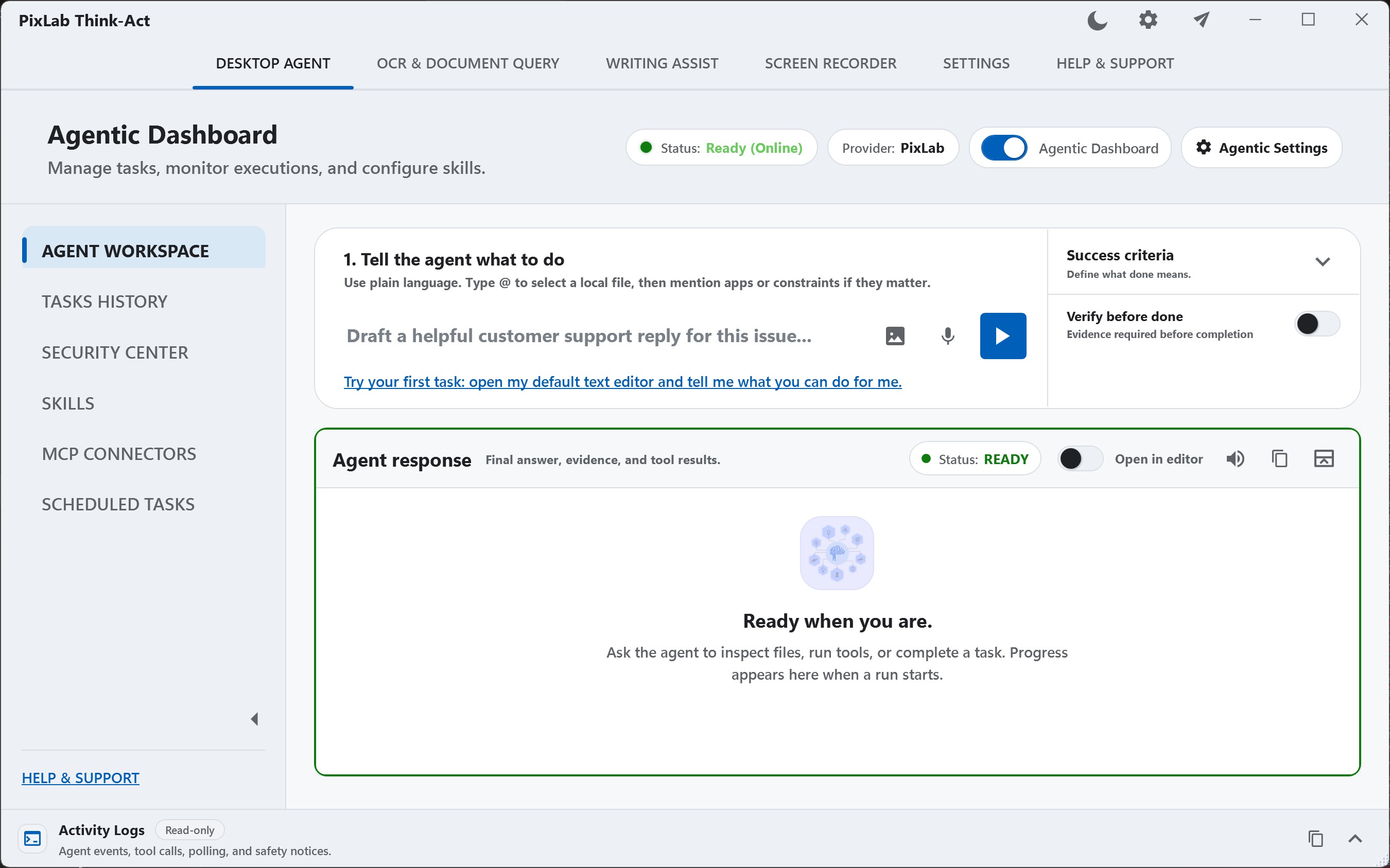
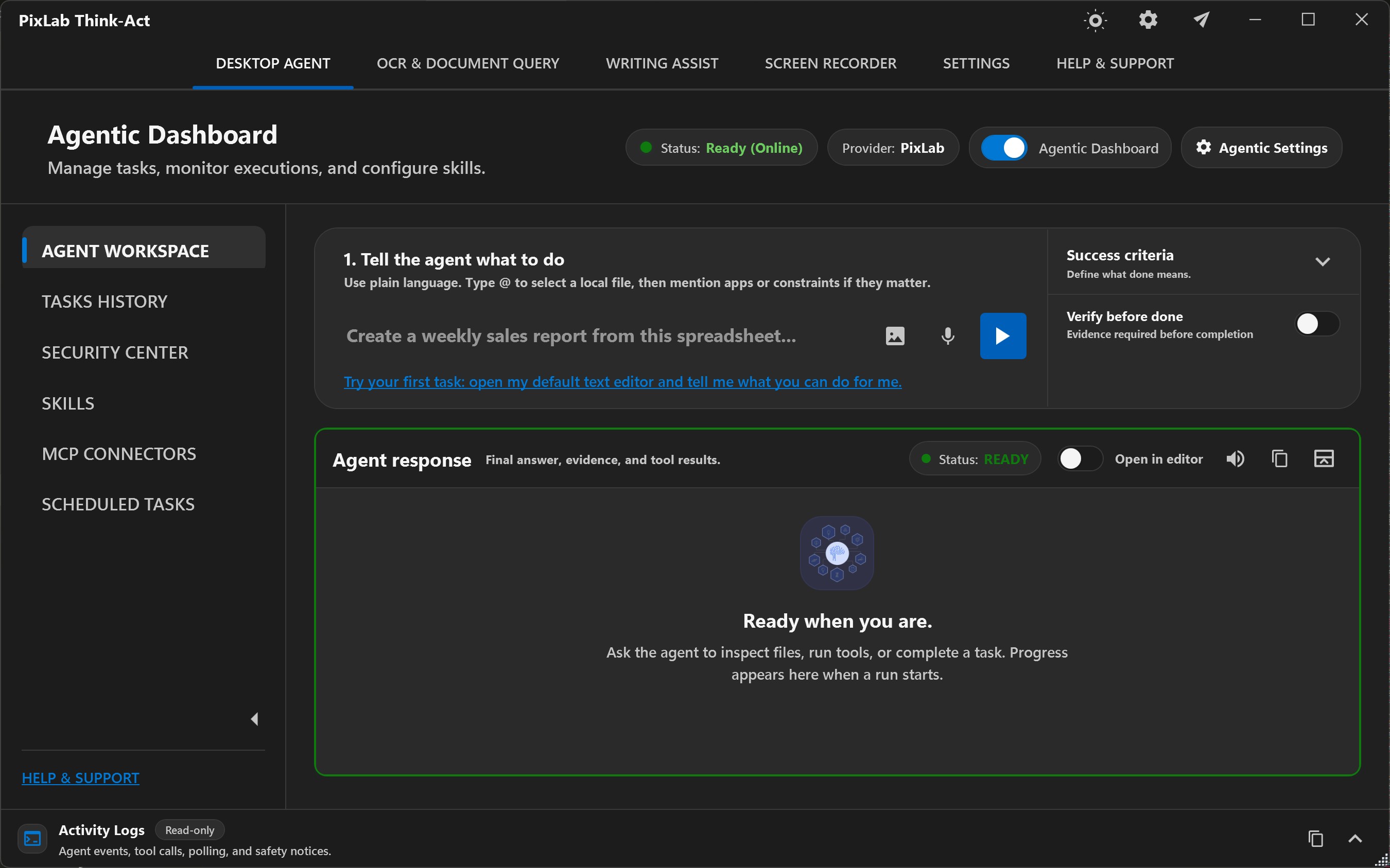
Think-Act brings writing assistance, OCR, document intelligence, screen recording, reusable Skills, connected tools, and a Desktop Agent into one application. Use the tool you need directly, or let the agent coordinate a clearly defined multi-step task.
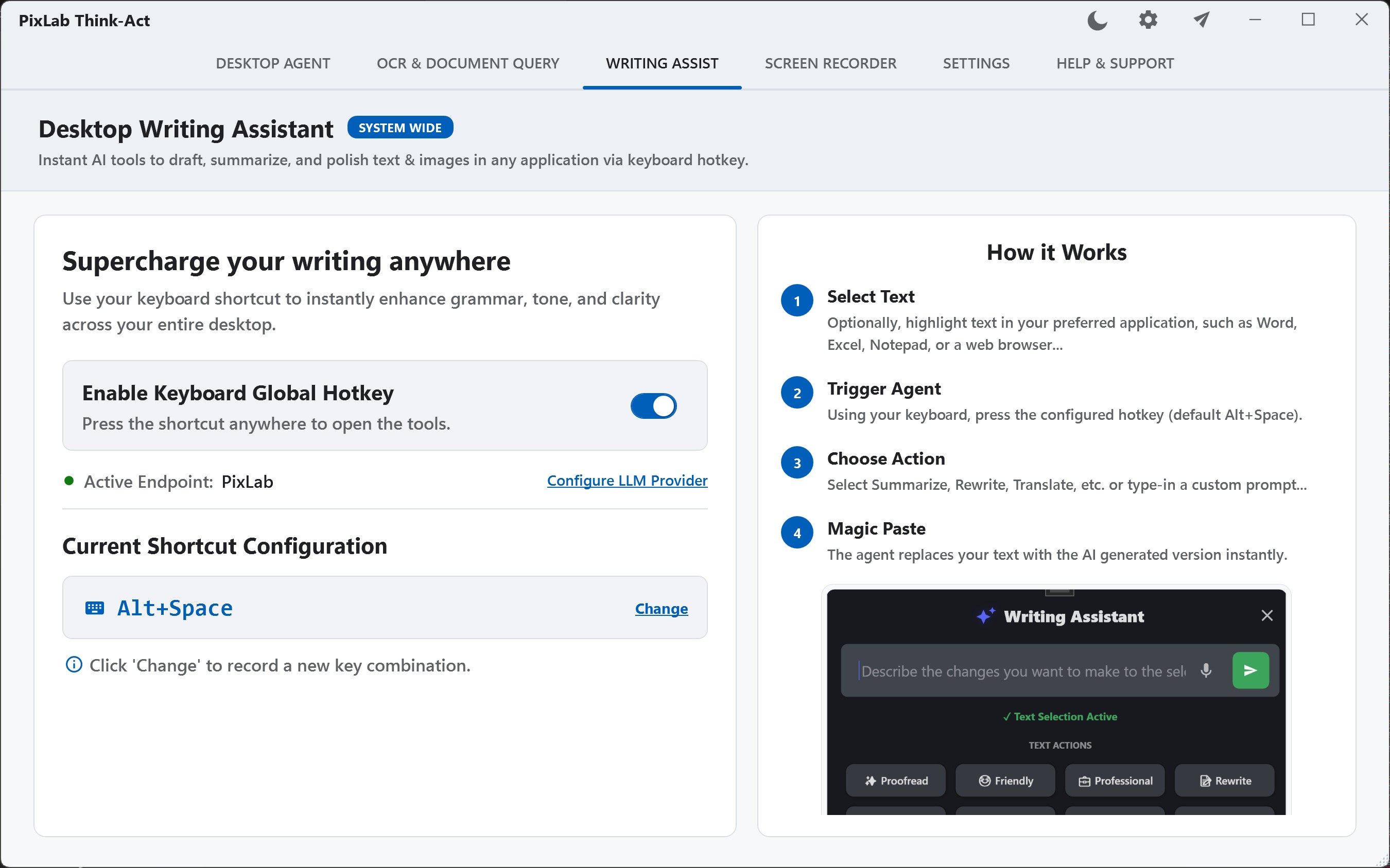
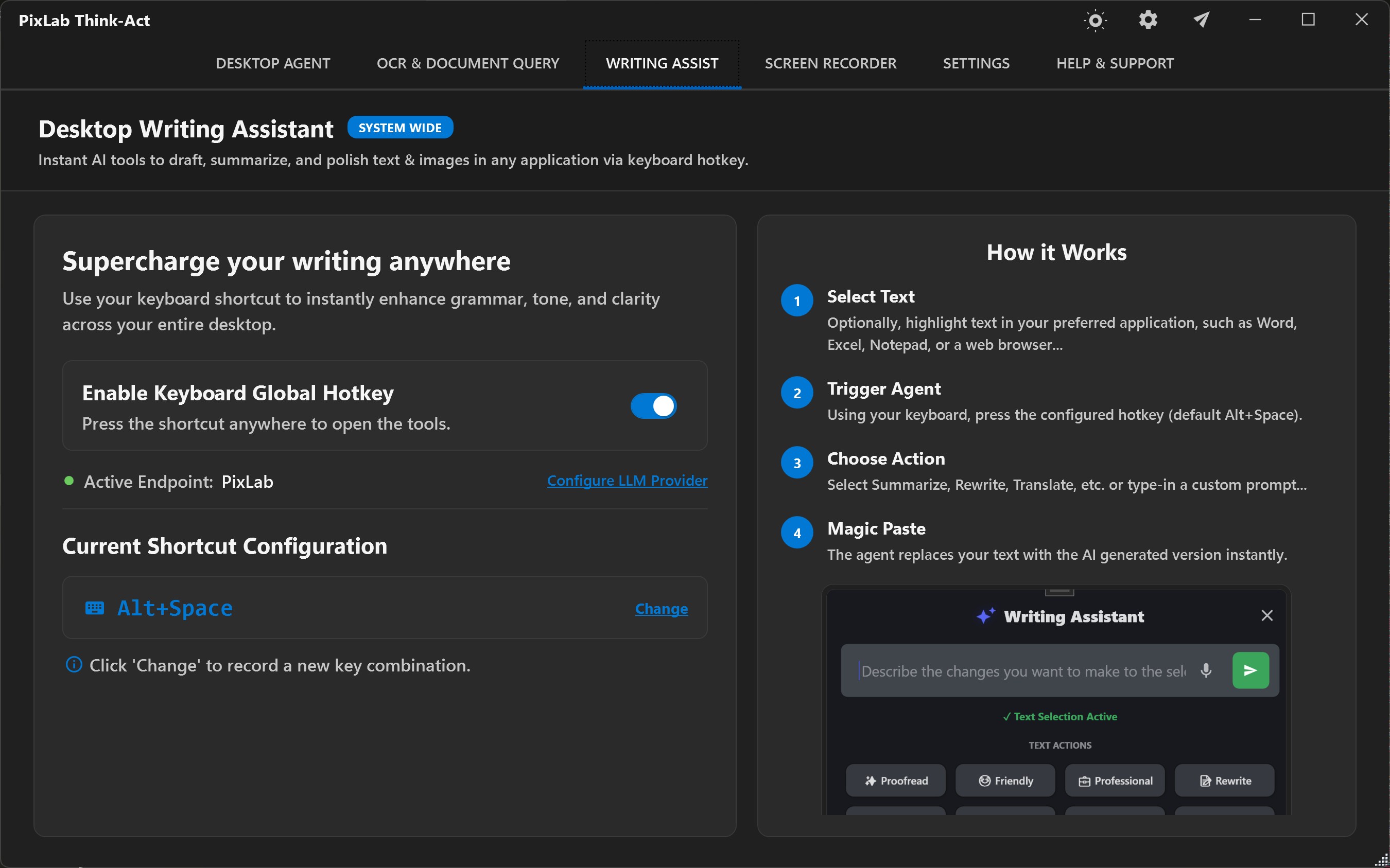
Give Think-Act a message or paragraph, describe what you want to improve, and review the rewritten version before using it.
Select or copy the message, paragraph, or notes you are already working with.
Ask for clearer wording, a shorter version, a different tone, or another useful change.
Check the revised wording before keeping it, editing it further, or using it.
Example
Make this polite and clearOriginal
“Need the updated report today. Send it when done and tell me if anything is missing.”
Revised draft
“Could you send the updated report today? Please let me know if any information is still missing.”
Think-Act does not hide everything behind an agent. Writing, document intelligence, and recording remain useful on their own. The Desktop Agent is there when the job genuinely spans multiple steps.
Desktop Agent
Describe the result, add the relevant context, and choose what the run may use. Follow supported activity, respond to approvals, and inspect the result before relying on it.
A run can include
Writing Assistant
Rewrite selected text, clarify wording, summarize material, translate content, or draft from the context you provide.
Explore Writing AssistanceOCR & Document Intelligence
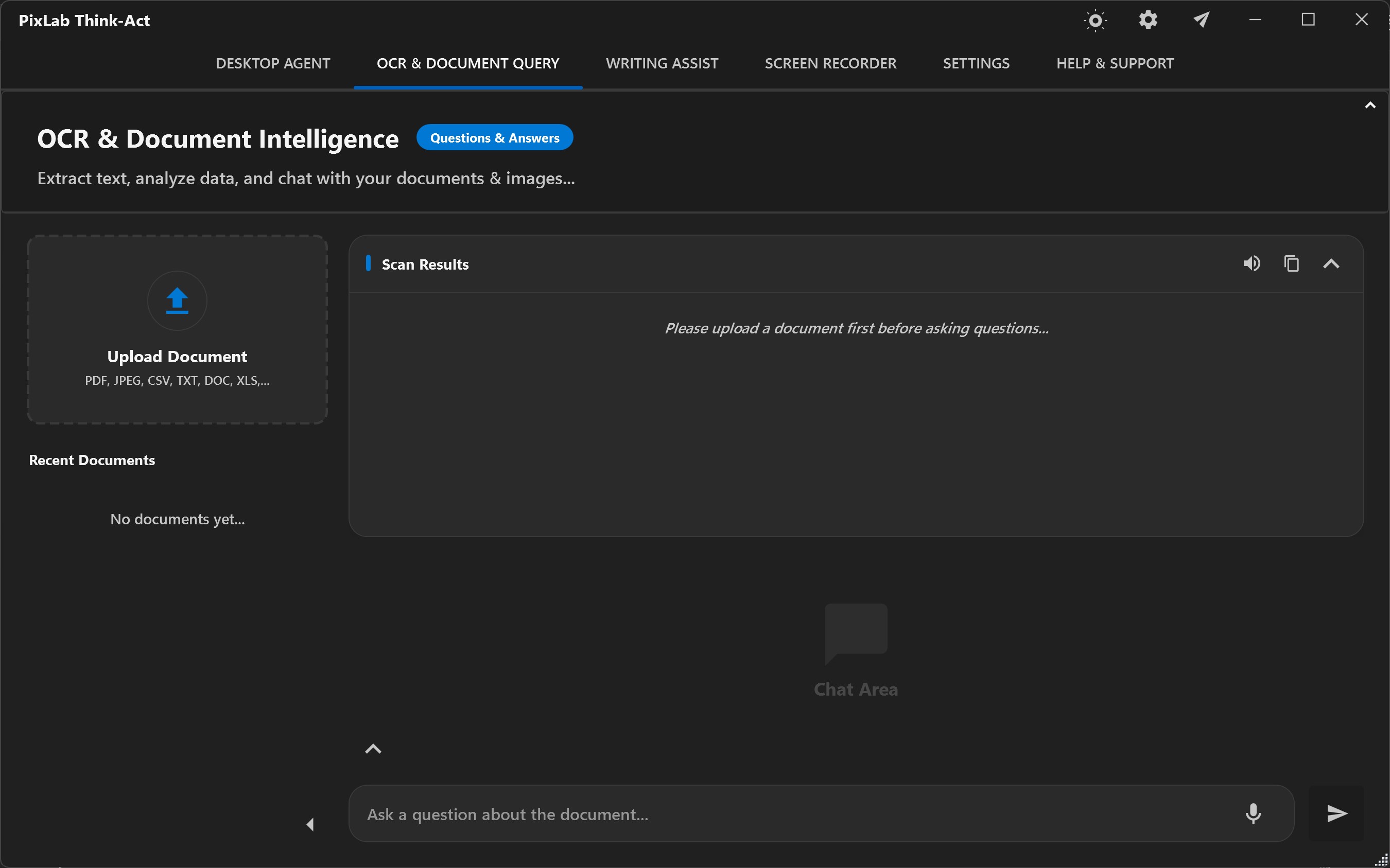
Use OCR and document intelligence to turn image-based or document content into text and structured context for the next step.
Explore Document IntelligenceScreen Recorder
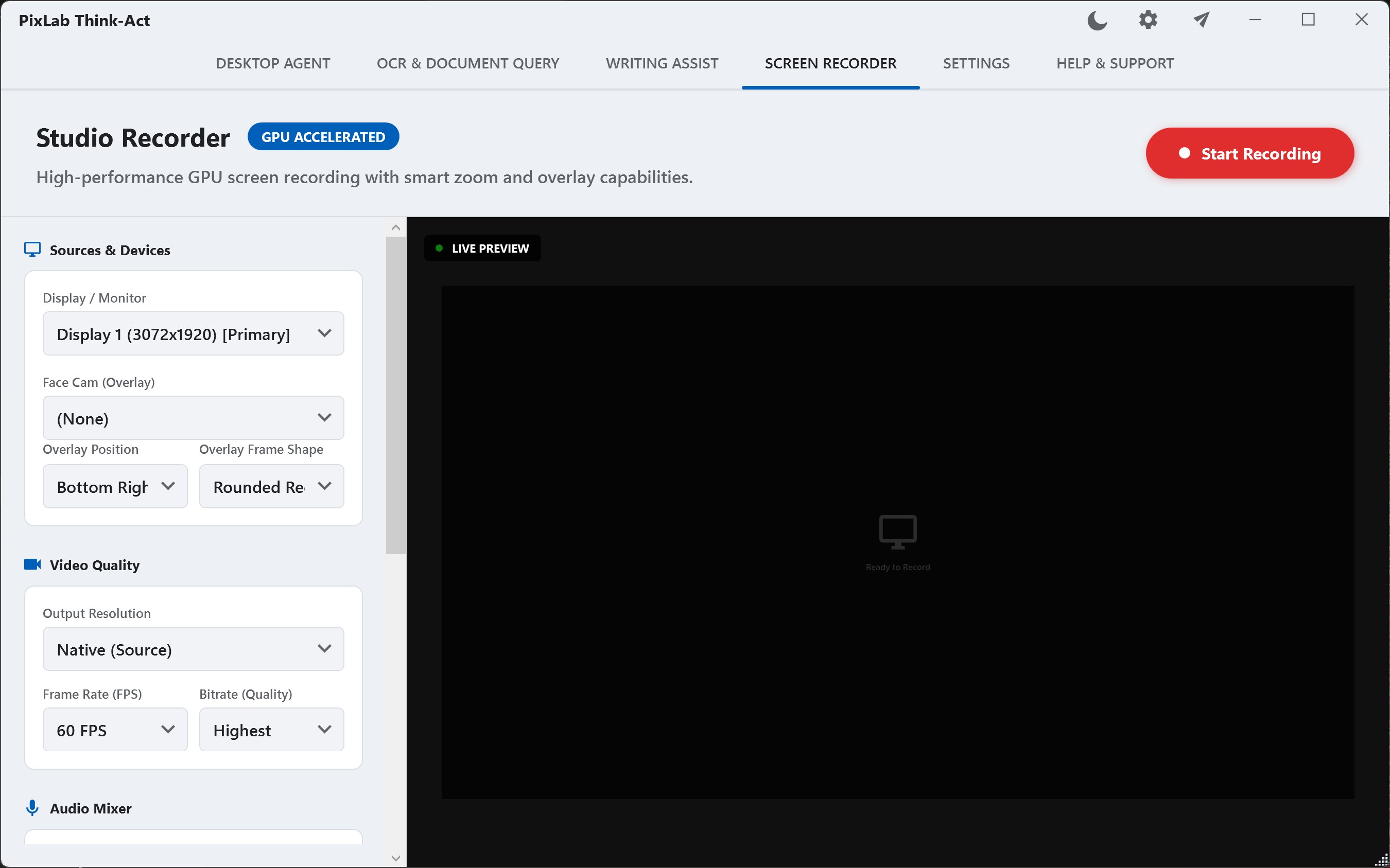
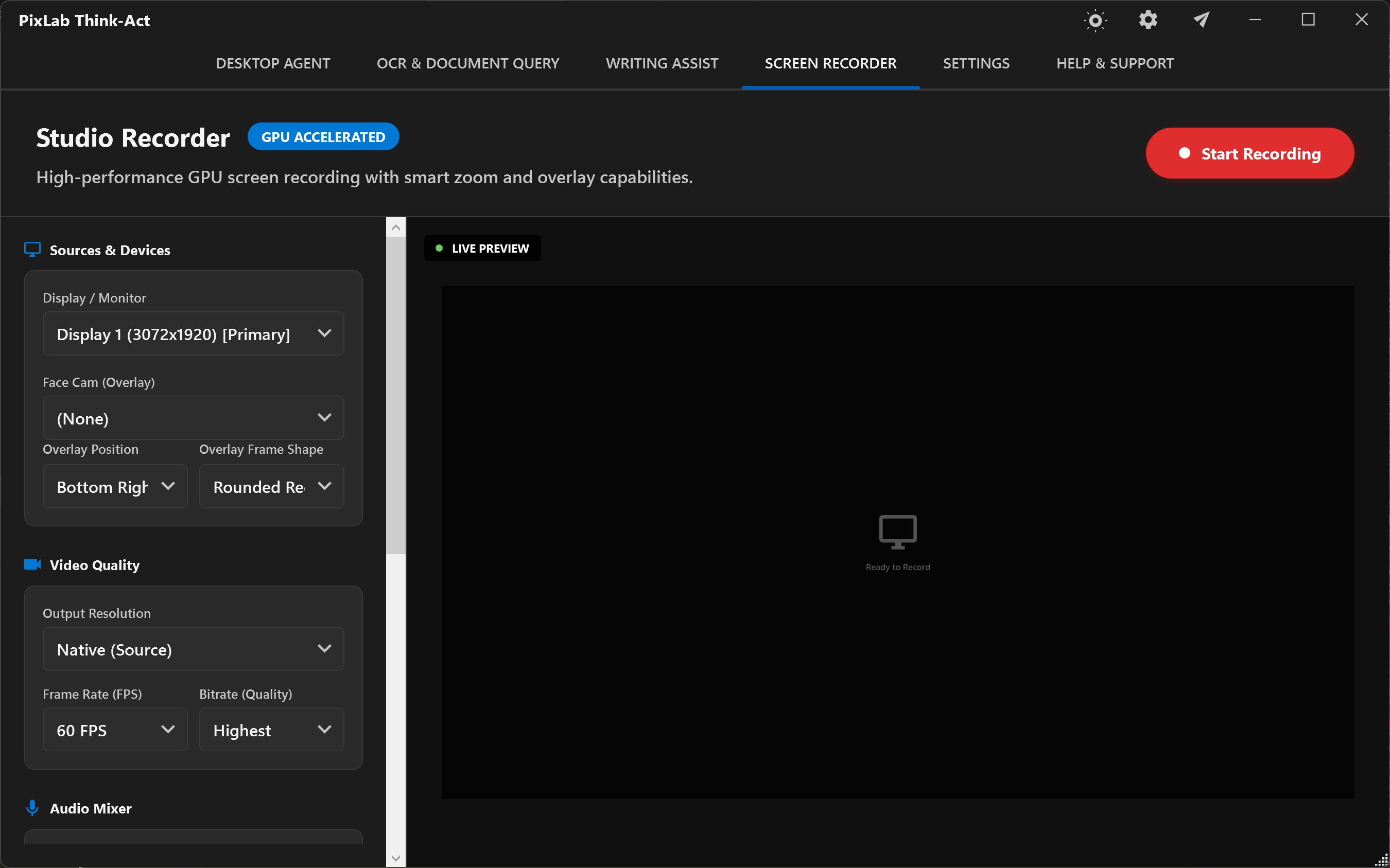
Record a walkthrough, process, or bug reproduction so it can become documentation, reference material, or context for later work.
Explore Screen RecordingSkills & Connected Tools
Store useful instructions and checks as local Skills. Add MCP connectors separately when a workflow needs access to another supported capability.
Explore Skills & integrations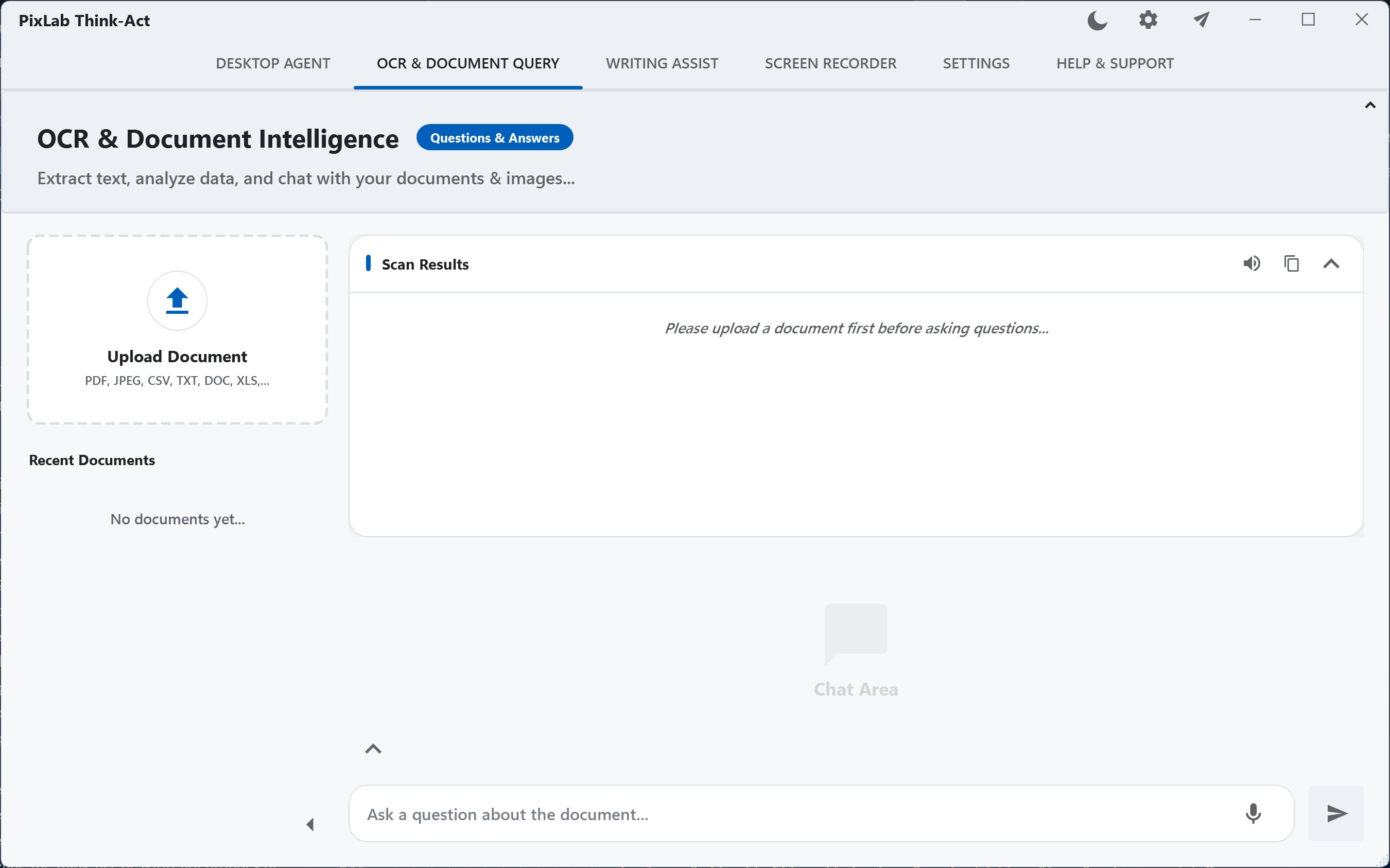
Source
Scan, image or PDF
Work with
Text & fields
Check
Against source
Instead of retyping a scan, screenshot, image, or PDF by hand, bring the source into Think-Act. Extract the text, organize the details you need, and keep the original nearby for verification.
Work with text from photographed pages, screenshots, scans, and image-based PDFs without manually re-entering everything.
Pull out names, dates, totals, references, or other details useful for the task instead of working from one long block of extracted text.
Compare names, amounts, dates, and important wording with the original before carrying them into the rest of your work.
Some work is easier to demonstrate than describe from memory. Capture the process as it happens, then use the recording as context for documentation someone else can actually follow.
Record the walkthrough, recurring task, or bug reproduction while the important details are visible.
Turn what happened into steps, onboarding notes, a procedure, or a reproducible bug report.
Restore missing context, correct the sequence, and remove anything that should not be shared.
For work that needs several supported capabilities, give the Desktop Agent a concrete result and the context required to reach it. The workflow stays bounded by what you provide, what tools are available, and the policies applied to the task.
Outcome
Define a clear result, such as a summary table, report draft, or checklist, instead of an open-ended request.
Example task
“Extract the key fields from these invoices and prepare a summary table. Flag anything unclear for me to check.”
Source
Supply the documents, screenshots, notes, recordings, or other material the task actually depends on.
Tools
Think-Act can coordinate supported tools or connectors that are configured and available for that workflow.
Decision
When a supported action falls behind an approval boundary, review the request before deciding whether it should continue.
Review
Verify important values, resolve anything flagged as uncertain, and correct assumptions before relying on the completed work.
Skills and connectors extend Think-Act in different ways. A Skill preserves how work should be approached. A connector makes another supported capability available to the workflow.
Reusable guidance
Save useful instructions, preferred structure, conventions, and review checks so recurring work does not have to start from scratch each time.
Example
Keep the same outline, required fields, terminology, and review checklist whenever you prepare a recurring report summary.
Additional capability
Configure an MCP connector when a task needs a supported local or external capability that is not otherwise available to the run.
Before enabling one
Review its source, permissions, and data access before making it available to a workflow.
Skill remembers the method
Connector supplies access
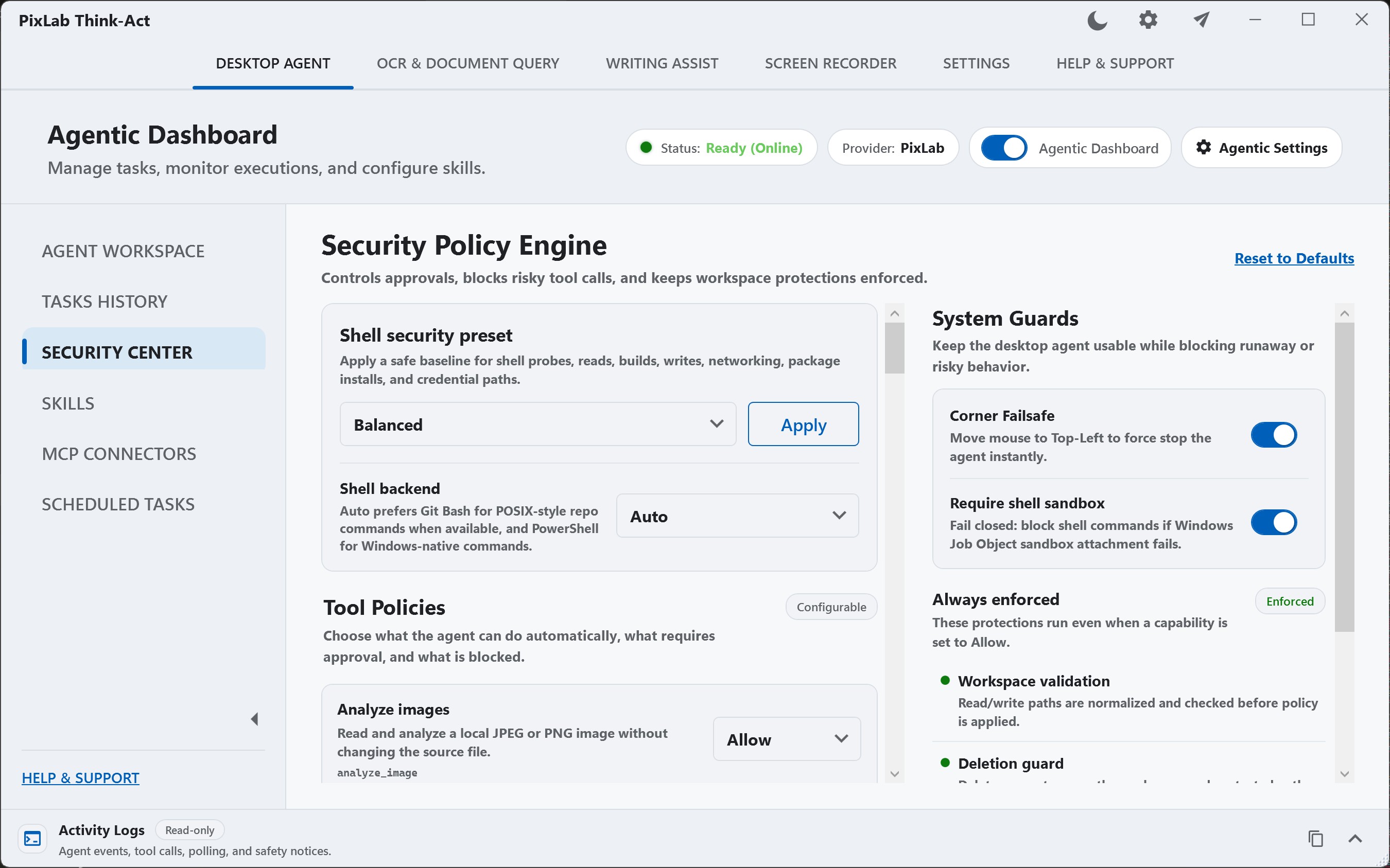
Think-Act runs on the desktop, while configured models, endpoints, or connectors may process task data elsewhere. Review the data-flow guidance before working with sensitive material.
Desktop automation can interact with real files, applications, and connected systems. Think-Act keeps tool availability and action policies visible instead of turning access into hidden background permission.
Proceed under the configured policy
The supported action can continue without another approval step.
Pause for your decision
Think-Act waits before the supported action continues so you can review what is being requested.
Keep the action outside the boundary
The supported action is not permitted under the configured policy.
Think-Act fits work that already moves between documents, screenshots, files, recordings, and desktop applications. Explore practical productivity workflows that start from the task you already have instead of requiring a separate automation project.
Turn reports, selected text, documents, and meeting notes into clearer summaries, replies, action lists, and handoffs.
Work from logs, error screenshots, recordings, configuration context, technical drafts, and approved local tools.
Extract invoice or statement fields, compare information, prepare tables, and keep original documents available for checking.
Search scanned material, summarize clauses, compare policies, and surface dates or obligations for qualified review.
Record procedures, prepare onboarding material, document recurring work, and save reviewed methods as reusable local Skills.
Extract text from images, simplify documents, improve everyday writing, and document tasks you expect to repeat.
Quick answers about the desktop workspace, connected tools, processing, permissions, and agent behavior. For deeper details, visit the complete product FAQ.
Think-Act is a desktop AI workspace for Windows and macOS for work involving writing, screenshots, OCR, documents, recordings, files, reusable Skills, and connected tools. The Desktop Agent guide explains how those capabilities work together.
Think-Act is built around desktop workflows that begin with the context already in front of you: selected text, screenshots, documents, recordings, or files. The next step can then use an available local or connected capability when the task requires it.
No. Writing assistance, OCR, document intelligence, and screen recording do not depend on MCP connectors. Connectors are useful when a task needs another supported local or external capability. See Skills and integrations for the distinction between reusable instructions and tool access.
That depends on the capabilities available to the task and the policy configured for each action. A supported action can be ALLOW, ASK, or BLOCK. Think-Act cannot use a connector or tool that is unavailable to the task. Review the security and approval model before enabling consequential actions.
Not necessarily. Think-Act is a desktop application, but processing location depends on the model, endpoint, connector, and workflow you configure. Review the data-flow guidance before using sensitive information.
Think-Act is available for both Windows and macOS. Visit the downloads page to choose the correct installer and review the current version and system requirements for your platform.
Rewrite a message, extract information from a document, record a process, or give the Desktop Agent a bounded task. Review the result, then decide whether the workflow is worth extending.